We made excellent progress in the last part, creating and moving our player sprite, as well as establishing a clean, extensible pattern for converting player events into game actions. Before we go any further into feature development, we’re going to set up the scaffolding for another very important system: saving and loading our game state.
This tutorial series is inspired by the Python-based Yet Another Roguelike Tutorial which leverages the TCOD library for roguelike development. TCOD includes built in functionality for serializing and deserializing game state, so the TCOD tutorial defers the topic until step 10. In Godot, we’ll need to write our own save and load system 1, a task which has prompted countless questions in Godot forums.
Saving and loading is often an afterthought in game development, as it’s not nearly as exciting as generating dungeons or creating combat handlers. Waiting until later in the series to address the topic risks finding us in a position where we have to create a save system that can handle the map, player, monsters, and various other pieces of game data all at once. By addressing this preemptively, we can build up our save/load system as we go, saving us many headaches and hours of frustration down the line.
This post isn’t intended to be a definitive work on the topic. Rather, we’re going to create the minimum possible save/load system to accommodate our game. We’ll store our game data in a human-readable ASCII text file, and include basic error checking on file operations and data deserialization.
Let’s take a look at the architecture of our save/load system:
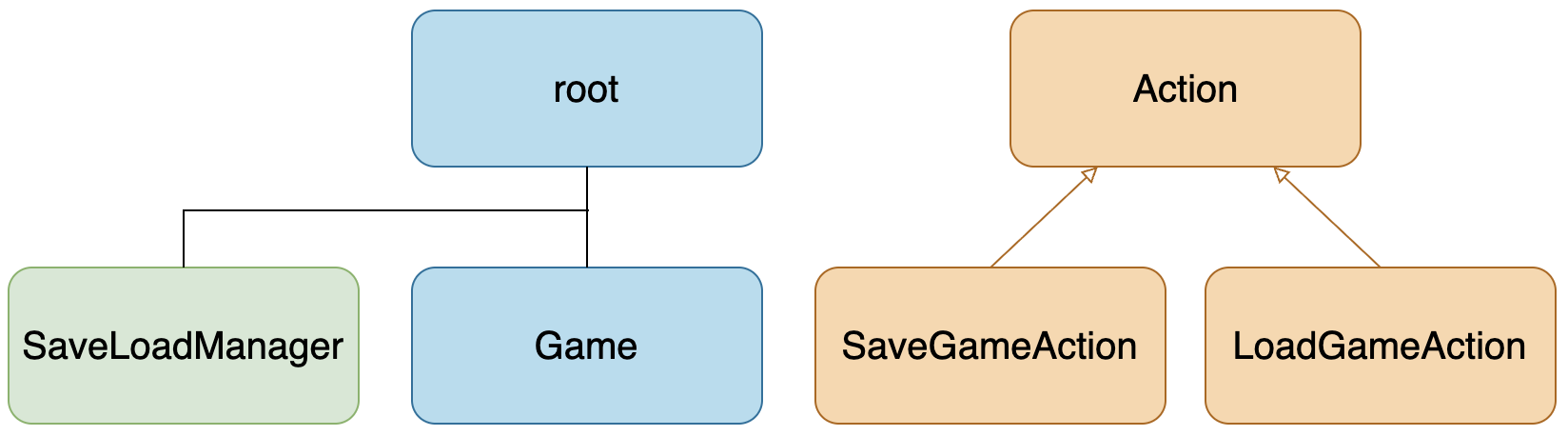
While we save our game state from within an active Game instance, later we’re going to want to load a game from a startup screen. With that in mind, we’ll register our SaveLoadManager as a global autoload. Godot will automatically attach autoloads to the game root at runtime.
In addition to the SaveLoadManager autoload, we’ll also create two new Actions: a SaveGameAction and LoadGameAction. Their uses should be self-explanatory.
The code for this part can be found at https://github.com/alexshopov/godot-roguelike-basic-set/tree/part-2
The SaveLoadManager Autoload
Create a directory called globals.
Open Project Settings -> Globals. Add a new node called SaveLoadManager and save it to the globals directory.

Open globals/save_load_manager.gd and add the following code. Note that classes defined through Project Settings -> Globals don’t require the class_name keyword to register the class as globally accessible.
extends Nodeconst SAVE_FILENAME := "user://savegame.json"const PLAYER_POSITION := "player_position"func save(game: Game) -> void: var save_data := { PLAYER_POSITION: var_to_str(game.player.global_position) } var json_str := JSON.stringify(save_data) var file := _open_file(FileAccess.WRITE) if not file: return file.store_string(json_str) print("Game saved successfully.")func load(game: Game) -> void: var file := _open_file(FileAccess.READ) if not file: return var json_str := file.get_line() var save_data := JSON.parse_string(json_str) as Dictionary if not save_data: print("Error parsing saved data.") return var player_position: String = save_data.get(PLAYER_POSITION) if not player_position: print("Error parsing player_position.") return game.player.global_position = str_to_var(player_position) print("Game loaded.")func _open_file(flags: FileAccess.ModeFlags) -> FileAccess: var file := FileAccess.open(SAVE_FILENAME, flags) if not file: var err := FileAccess.get_open_error() print("Failed to open %s. Error: %s" % [SAVE_FILENAME, error_string(err)]) return null return file
We start by defining two constants: a name for our save file, and an identifier for the player position.
extends Nodeconst SAVE_FILENAME := "user://savegame.json"const PLAYER_POSITION := "player_position"
Our save method creates a Dictionary to hold our game state. We’ll retrieve the player.global_position from the Game object passed into the save method. We convert the global_position to a string using Godot’s built in var_to_str helper and add it to save_data, using our PLAYER_POSITION constant as the key. Godot offers built-in functionality to serialize Godot data into a JSON formatted string 2 so we’ll pass it our Dictionary, then open our save file for writing. If the file exists, we’ll store our data string. Note the use of the _open_file helper method. We’ll get to that shortly.
func save(game: Game) -> void: var save_data := { PLAYER_POSITION: var_to_str(game.player.global_position) } var json_str := JSON.stringify(save_data) var file := _open_file(FileAccess.WRITE) if not file: return file.store_string(json_str) print("Game saved successfully.")
The load method is effectively the mirror of save. We open our save file using the _open_file helper, and if the file exists, we read the contents into the json_str variable. The JSON.parse method is the reverse of JSON.stringify, taking a formatted string and deserializing it into a Godot datatype. We’re going to type cast save_data to a Dictionary, and validate that it isn’t empty. We then read the player position, again validating that it exists. If it does, we parse it from a String back to a Vector2 using Godot’s str_to_var helper, then update the player.global_position.
func load(game: Game) -> void: var file := _open_file(FileAccess.READ) if not file: return var json_str := file.get_line() var save_data := JSON.parse_string(json_str) as Dictionary if not save_data: print("Error parsing saved data.") return var player_position: String = save_data.get(PLAYER_POSITION) if not player_position: print("Error parsing player_position.") return game.player.global_position = str_to_var(player_position) print("Game loaded.")
Opening a file to save or load data is handled by Godot’s FileAccess class3. The process is the same either way, so rather than repeat the code, we’ll create an _open_file helper method to handle opening a file and verifying that the operation was successful. If a file can’t be opened, we’ll log an error and return null to the calling method. If opening the file is successful, we’ll return the reference to the calling method.
func _open_file(flags: FileAccess.ModeFlags) -> FileAccess: var file := FileAccess.open(SAVE_FILENAME, flags) if not file: var err := FileAccess.get_open_error() print("Failed to open %s. Error: %s" % [SAVE_FILENAME, error_string(err)]) return null return file
Save and Load Actions
Add two new Actions to the actions directory: save_game_action.gd and load_game_action.gd. Add the following code to the appropriate files:
class_name SaveGameActionextends Actionfunc execute(game: Game) -> void: SaveLoadManager.save(game)
class_name LoadGameActionextends Actionfunc execute(game: Game) -> void: SaveLoadManager.load(game)
Next we need to specify key bindings for these actions. Open Project Settings -> Input Map and add “save_game” and “load_game” actions and map them to the keys of your choice. This series will use F5 for save and F9 for load.
Open handlers/event_handler.gd and add the following code to the _handle_keyboard_event method:
func _handle_keyboard_event(event: InputEventKey) -> Action: ...+ if event.is_action_pressed("save_game"):+ return SaveGameAction.new()+ if event.is_action_pressed("load_game"):+ return LoadGameAction.new() ...
Thanks to the Action -> execute() pattern we established in part 1, we don’t need to modify the Game _input method to accommodate the new save and load actions. This is the power of the Command Pattern in action.
Run the game and move your player to a new position on the screen. Press the save key. Confirm that you see the “Game saved successfully` message in the console, then quit. Run the game again, and press the load key. Your player should snap to the position it was in when you saved and the “Game loaded” message should appear in the console.
With the save/load scaffolding in place, part 3 will dive into taking advantage of the Godot Node and Resource system to create composable, data driven entities, as well as our first look at generating the dungeon map.
References
Runtime File Loading and Saving: https://docs.godotengine.org/en/stable/tutorials/io/runtime_file_loading_and_saving.html
JSON: https://docs.godotengine.org/en/stable/classes/class_json.html
FileAccess: https://docs.godotengine.org/en/stable/classes/class_fileaccess.html
 Alex Shopov: EcoDevGuy